How to solve a loading issue (pop-up or content)?
If a page, pop-up, content area or file generation does not load correctly, follow the steps below to collect the error details needed for diagnosis.
Enable debug mode before reproducing the error. Use it temporarily, preferably on a staging shop, then disable it as soon as you have collected the necessary information.
The screenshots below show older interfaces. Their appearance may differ from your shop or browser.
1. Temporarily enable debug mode
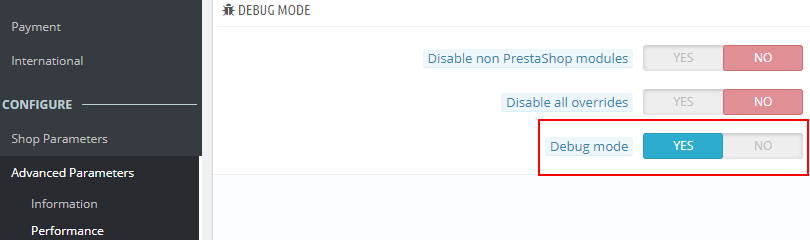
From the PrestaShop 1.7, 8 or 9 back office
- Open Advanced Parameters > Performance.
- Enable debug mode in the Debug mode section.
- Save the setting.
If the back office is unavailable, or on an older version
Using your hosting file access, open config/defines.inc.php in your shop folder. Find the existing definition of _PS_MODE_DEV_ and change its value from false to true:
define('_PS_MODE_DEV_', true);Save the file. Edit the existing definition; do not add a second definition of this constant. If you are not comfortable editing the file, ask your webmaster to do it.

2. Reproduce a page loading error
Once debug mode is enabled, reload the affected page and repeat the action that fails. A blank page or a generic message alone may not be enough to identify the cause.
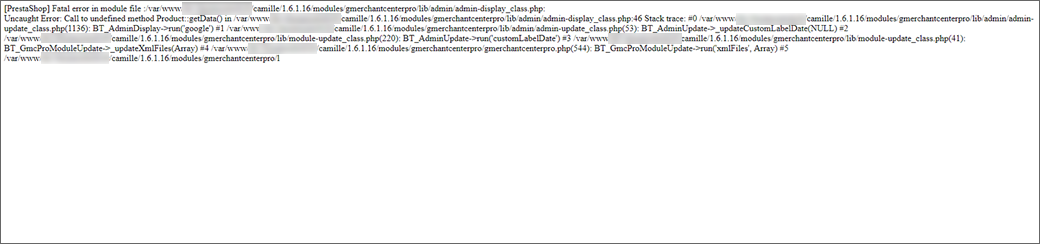
Record the complete error message, including the file name and line number when provided. A readable screenshot or a copy of the text will help support identify the problem.
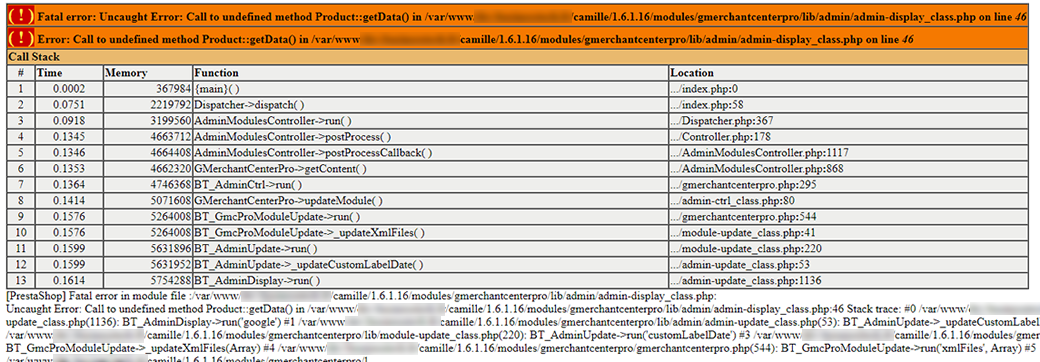
If no further details appear, ask your host or webmaster to check the PHP error logs for the time of the incident.
3. Inspect an Ajax or file generation error
A pop-up or an Internal Ajax error message may indicate that a background request failed. The request response contains the error details.

- Open the browser developer tools by right-clicking the page and selecting Inspect.
- Open the Network tab. You can use the Fetch/XHR filter to find Ajax requests.
- Keep the tools open, then reproduce the error: reopen the pop-up or, for example, start the file generation again.
- In the Name column, select the request matching that action. Record its HTTP status.
- Open Response to read the returned message. The Preview tab may also help display an HTML response.
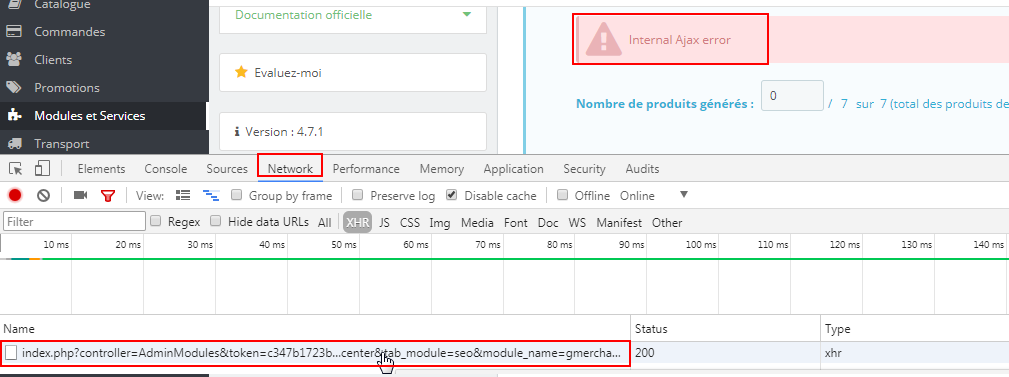
An HTTP 200 status does not guarantee that the operation succeeded: also check the response content.
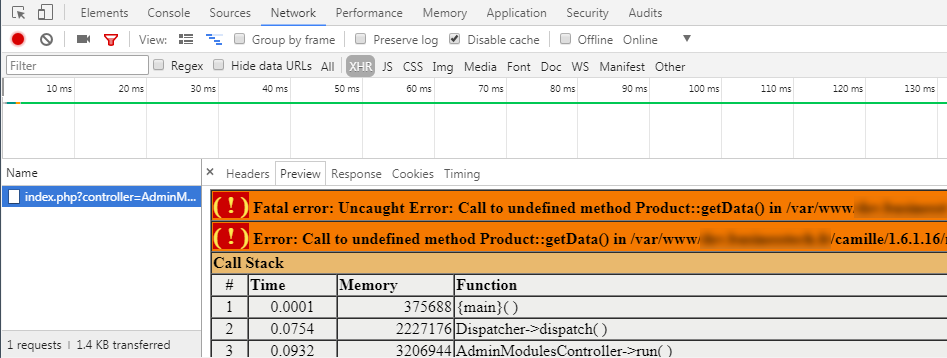
If no request matching the action appears, also check the Console tab and send any JavaScript errors to support. If navigation clears the request list, enable Preserve log before trying again.
4. Recognize a PHP time or memory limit
Execution time exceeded
Maximum execution time of ... seconds exceededThis message means the PHP execution time limit was reached. The relevant directive is max_execution_time.
Available memory exhausted
Allowed memory size of ... bytes exhaustedThis message means the script reached its PHP memory limit, defined by memory_limit. The dots represent the values shown in your actual error message.
Send the error to your host or server administrator to check the limits actually applied to the shop and determine whether an adjustment is needed. On shared hosting, the changes available depend on your plan. If the operation processes a large catalog, also ask support whether it can run in batches.
The web server can apply its own timeouts. An HTTP 502 or 504 status alone therefore does not prove that a PHP limit caused the problem. Any increase should match the diagnosis and the hosting resources.
5. Send useful details to support, then disable debug mode
Include the following in your support request:
- The affected page and the exact steps needed to reproduce the problem.
- Your PrestaShop, module and PHP versions, if known.
- The complete error message or a readable screenshot.
- For an Ajax error, the HTTP status and the relevant content of the Response tab.
- The time of the problem if your host needs to find the event in its logs.
Hide any passwords, keys or access tokens that may appear in the information you send.
Once you have collected the information, disable debug mode under Advanced Parameters > Performance. If you enabled it in the file, set the constant back to false:
define('_PS_MODE_DEV_', false);