How to configure my module?
The module displays repairability and durability scores on your product pages and, when the corresponding options are enabled, on product listing pages. Scores are supplied by the manufacturer or importer; the module does not calculate them. To understand the two scores and the product categories concerned, see the FAQ on score calculation.
Durability score support is available from version 1.2.0. If you use an older version, start by updating the module.
1. Choose the product features to use
During installation, the module creates the “Repairability Score” and “Durability Score” features, with values from 0 to 10 in increments of 0.1. Each score has its own settings in the module configuration.
In each score’s tab, check the Feature group to use. If you have already entered scores in another feature, you can select that feature instead. See the FAQ on using an existing feature for details.
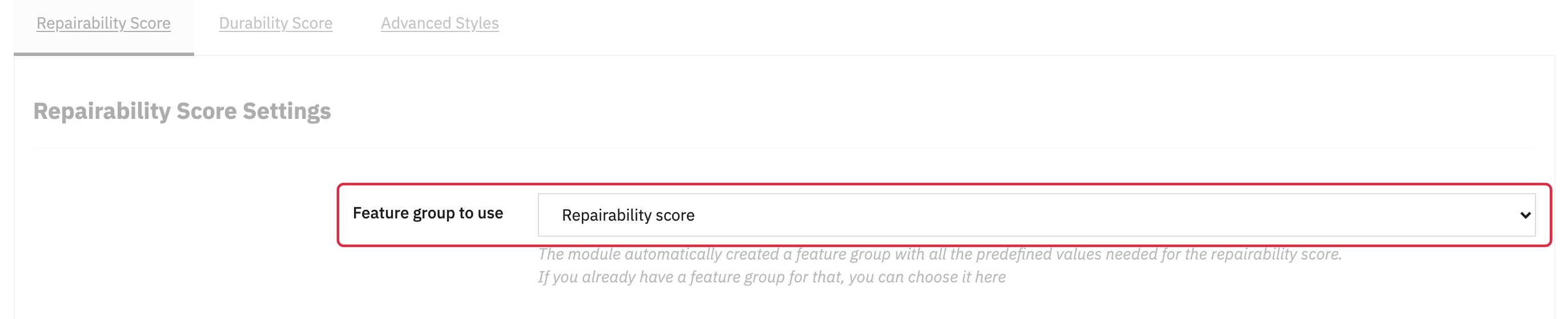
Repairability example. The same setting is available in the durability tab; the two choices are independent.
2. Enable display on product listing pages
Enable the listing-page option for each score you want to display there. The repairability and durability options are independent. Save the configuration.
3. Enter your products’ scores
Open each relevant product in your back office, then its Features section. Select the feature for the score applicable to that product, choose the rating supplied for that model and save.
Do not copy a repairability rating into the durability feature. See the FAQ on obtaining scores and supporting documents from the manufacturer.
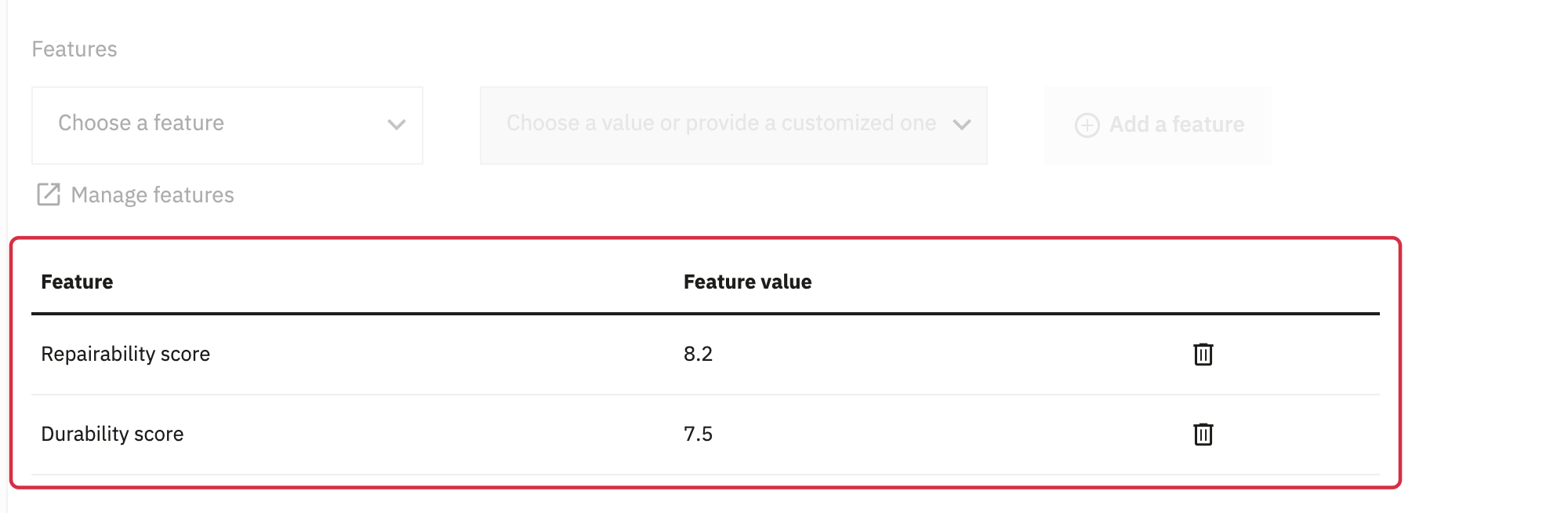
Sample ratings in Features, in the Details tab of PrestaShop 9. Use the ratings supplied by the manufacturer for your products.
You can also populate these features through PrestaShop’s CSV import or an ERP connector that supports product features. Check that your import uses the features selected in the module and the expected values; importing data does not calculate scores.
4. Associate calculation documents
For each product, you can associate one document detailing the repairability calculation and another for durability. Customers can download each document from the corresponding score. Follow the procedure for associating calculation documents.
5. Check the display in your theme
Check the relevant product pages and listing pages on desktop and mobile. Display depends on the hooks available in your theme; CSS or template adjustments may be required.
The module uses PrestaShop’s widget mode to allow placement on a suitable product-page hook. Moving it may require help from your theme integrator.
Because ratings are stored as product features, they can also be used as criteria in a filtering module that supports those features, such as Advanced Search. Configure the filters in that filtering module.