Where to find my sitekey and my secret key?
The Invisible CAPTCHA module uses a sitekey and a secret key provided by Cloudflare Turnstile. These two keys enable checks on your shop and back-office forms.
Create a Turnstile widget and retrieve its keys
- If necessary, create a Cloudflare account.
- Open the Turnstile section of the Cloudflare dashboard and select your account if prompted.
- Click Add widget.
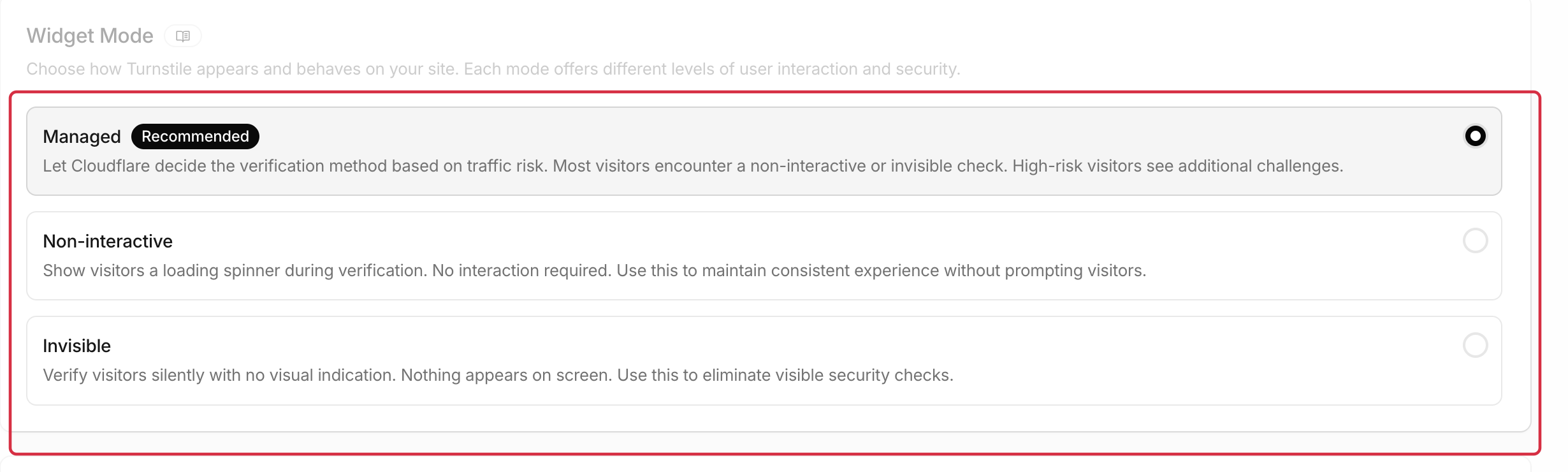
- Name your widget, enter its authorized hostnames and choose its mode, as explained below.
- Click Create, then copy the sitekey and secret key of the widget you created.
Which domains should I authorize?
Enter the hostnames where protected forms are displayed, such as example.com or shop.example.com, without https://, a port or a path. Adding example.com also authorizes its subdomains; adding only shop.example.com does not authorize the parent domain or another subdomain such as admin.example.com.
Check that the addresses used by your shop and back office are covered, along with any other shop domains using this widget. Your site does not need to use the Cloudflare proxy or change its DNS to use Turnstile.

Which mode should I choose?
- Managed: Cloudflare's recommended mode. The service adapts the check and may ask visitors to tick a checkbox.
- Non-Interactive: a widget shows that verification is taking place, without asking the visitor to interact.
- Invisible: verification runs in the background, without a visible widget or checkbox.
The mode selected in Cloudflare determines whether a widget is visible. If you use Invisible mode, Cloudflare requires you to reference its Turnstile Privacy Addendum in your own privacy policy.
Enter the keys in the module
- In your PrestaShop back office, open the Invisible CAPTCHA module configuration.
- In the Configuration tab, under Cloudflare configuration, paste the sitekey and secret key from the same widget into the corresponding fields.
- Click Save in this section.
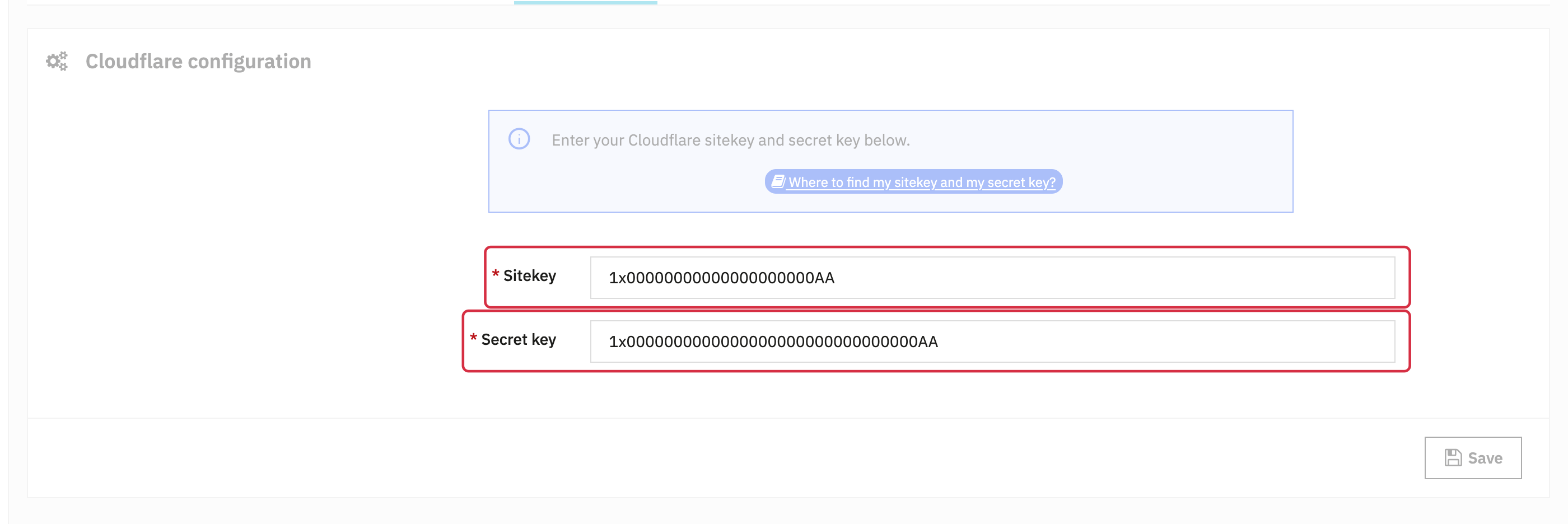
The screenshot uses public test keys only to illustrate the fields. Enter your own widget’s keys to protect your shop.
The sitekey is a public key used by the widget. The secret key is used for server-side checks: keep it confidential and do not publish it on a page or in a screenshot.
To retrieve the keys of an existing widget or change its domains and mode, select the widget in Cloudflare's Turnstile section and open its Settings. If you replace the keys, enter the new pair in the module and save.
You can then choose which forms to protect and check the configuration.