How do I select and order feature values for a product?
The module lets you select several values for the same feature, set their order for each product and choose the separator used to display them on your storefront.
Select and order values in PrestaShop 8.1 to 8.x
- Open the product editing page and its features section.
- For the feature concerned, click values in the left list to add them to the selected values on the right. Click a selected value to remove it. The commands for adding or removing all values apply to this list.
- Drag the values in the right list into the order you want, then save the product.
A custom value entered for this product remains specific to that product: it does not become a shared predefined value in your catalogue. Enter its translations in the languages used on your store.
Select and order values in PrestaShop 9
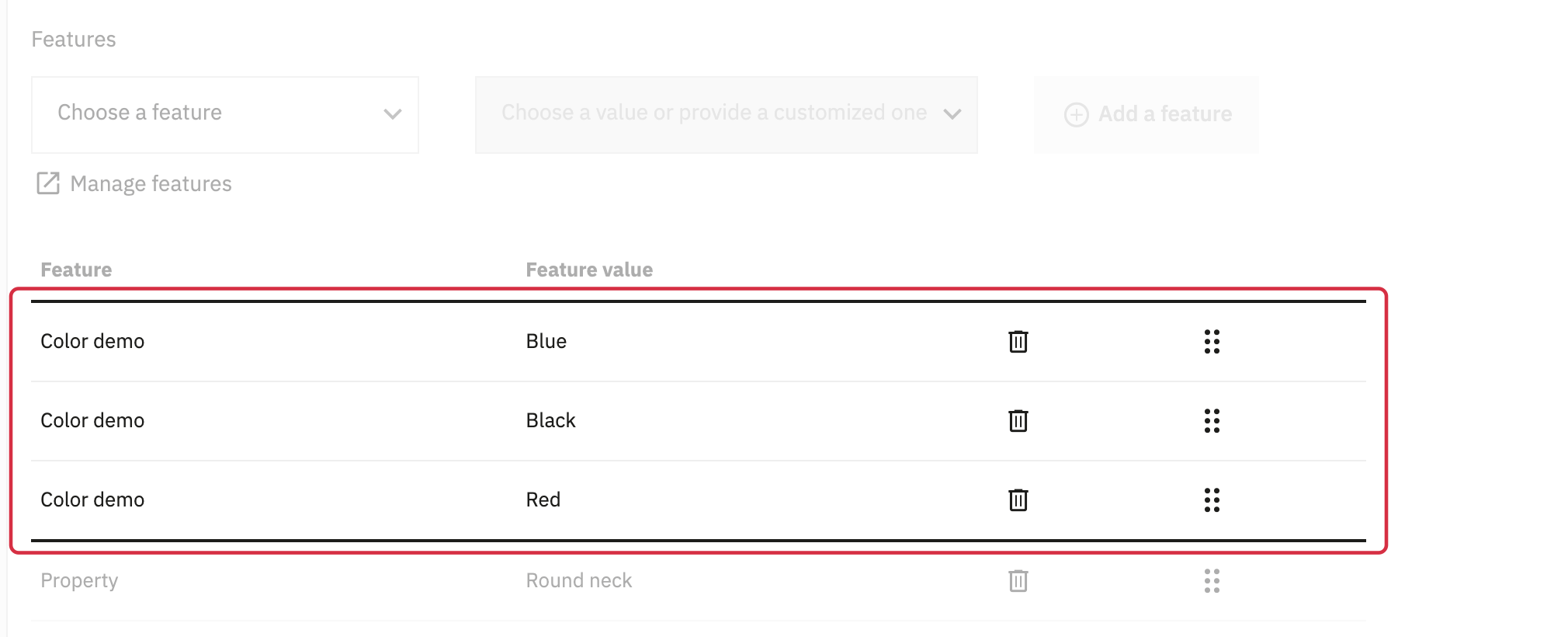
Features appear in the native table on the product editing page. Add values using the PrestaShop controls.
You can only reorder values within that feature: you cannot move a value to a different feature.
Choose the storefront separator
In the module configuration, fill in “Separator to be used between values”, then save. By default, values are separated by a comma followed by a space: for example, Color: Red, Blue.
This setting separates values within the same feature. It is independent of the separator used to import those values by CSV. Then check the result on the storefront product page.
See also: Import multiple feature values with a CSV file.