How do I import multiple feature values with a CSV file?
Use the built-in import
Importing multiple feature values is built into the module. If the former Multiple Features Import module is still enabled, disable it to access the Multiple Features configuration. You no longer need to install it separately.
Prepare the features column
In the “CSV Import” section of the module configuration, “Separator used between values in CSV file” sets the character that separates values within the same feature. Its default is |.
With this setting and a comma as the multiple value separator in the PrestaShop import, a cell in your features column can contain:
Color:Red|Black|Blue,Material:Cotton|Silk:separates the feature name from its values.,separates features in this example. It must match the multiple value separator selected in the PrestaShop import.|separates values within the same feature and must match the module setting.
The CSV column separator is another setting: for example, you can use a semicolon between columns and keep the comma inside the cell shown above. The storefront display separator does not change the import file format.
Add values or replace the product’s features
“Overwrite existing product features” is disabled by default. The module then adds imported features to existing associations.
If you enable this setting, all feature associations for the processed product are removed before the file data is applied. Features missing from the CSV are also removed from that product. For example, if the product already has a color and a material, but your file only contains the color, the material will also be removed from the product.
Run an initial import
- Save the module’s import settings.
- Open the PrestaShop import tool, select products and choose the language matching your file.
- Check the column separator and the multiple value separator.
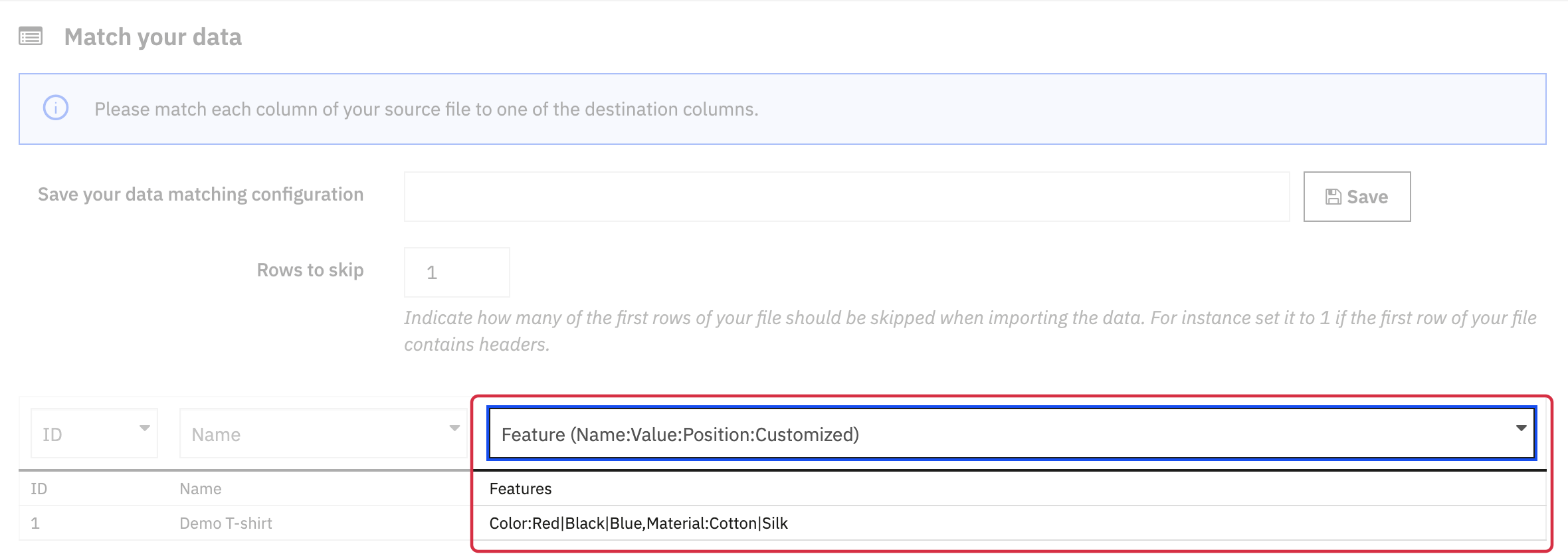
- At the column matching step, map the example column to the features field. Map the other columns to the data they contain, paying particular attention to how the product to create or update is identified.
- Start with a single test product. After the import, check its values and their order on the product editing page, then their storefront display, before importing the rest of the catalogue.
If you need to update the module first, see the update procedure.
See also: Select and order values on a product editing page.