How do I add a link to a feature value?
Enable links and open the correct editing page
- In the module configuration, enable “Enable adding links to feature values”, then save.
- In the catalogue, open the relevant feature, then edit its value, such as “Blue”.
- In the Multiple Features section for that value, enter the destination URL.
The link belongs to the catalogue value, so it applies to products that use that value. It is not configured in the list of features assigned to an individual product.
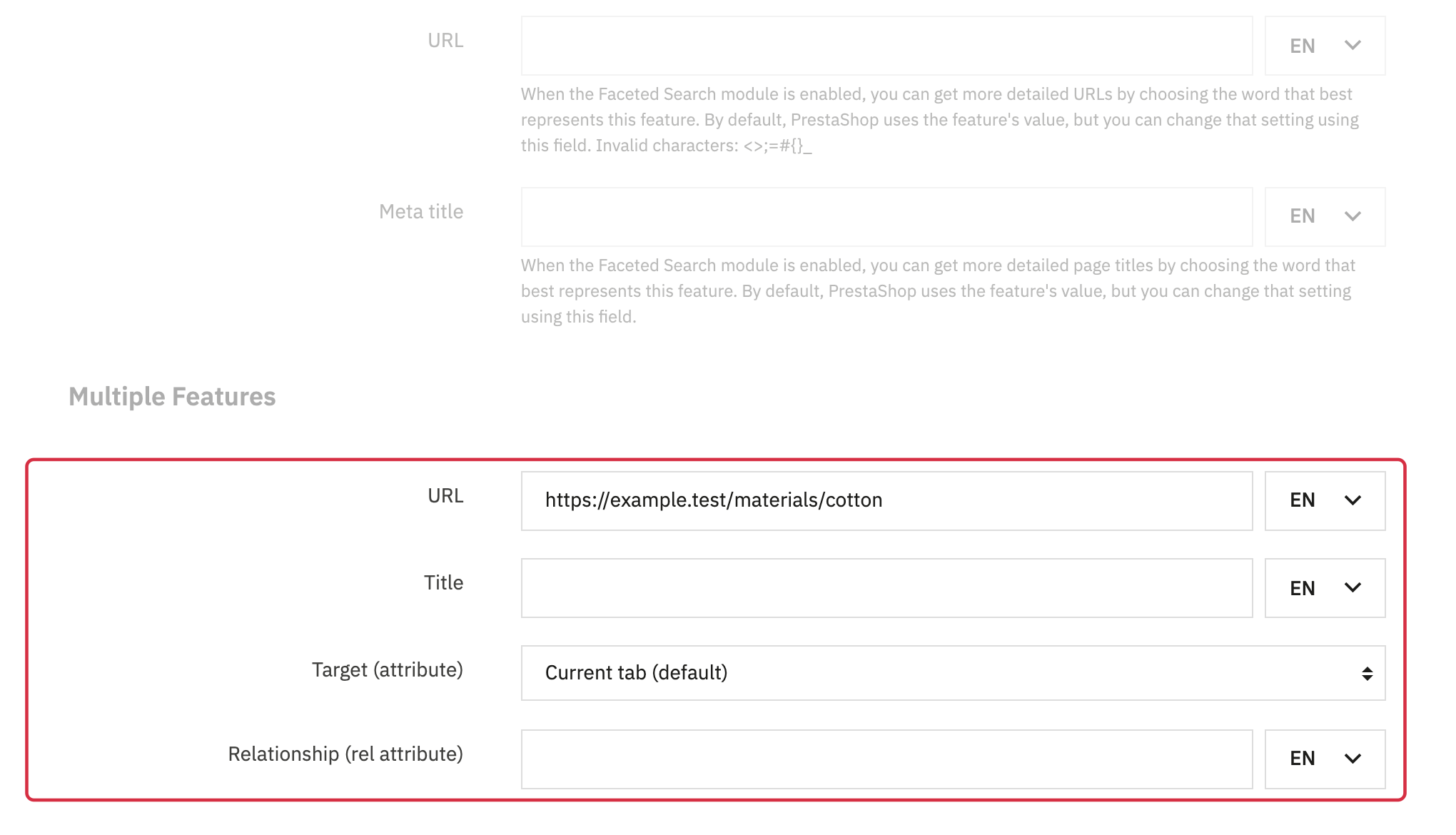
Enter the languages and link options
Enter the URL in every language in which the link should appear. An empty URL for a language does not create a link in that language. You can also enter the link title, choose the current tab or a new tab, and fill in the rel attribute.
Save the value, then open a storefront product that uses it. Check the link destination and how it opens in each relevant language.
If the link appears as plain text
Link rendering depends on your theme. If the storefront displays the link’s HTML instead of clickable text, ask the person maintaining your theme to check how feature values are rendered. The display template may need to be adjusted.
See also: Select feature values for a product.