How do I create and manage SEO pages (facets)?
The module can create predefined results pages from an engine’s active criteria groups. For an overview of PRO features, see this comparison. Enable PrestaShop Friendly URLs, add the required groups to the engine and check their indexing. The actions are under “SEO Pages (facets)”, below that engine’s groups.
Create a page
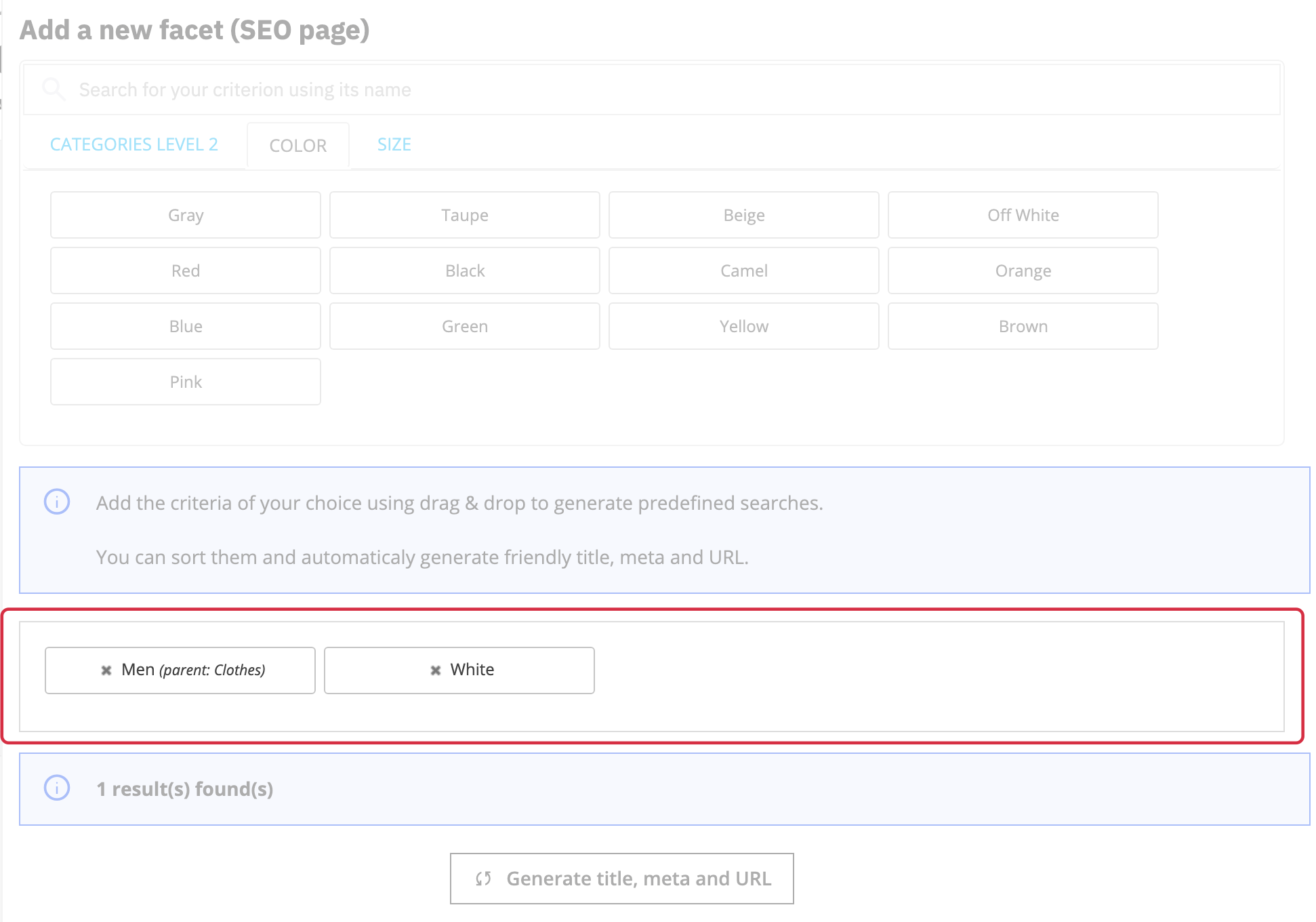
Click “Add a new facet (SEO page)”. Drag the required criteria from their tabs into the selection area, then arrange them in a readable order. You can combine criteria from different groups.
Click “Generate title, meta and URL” to prefill the fields, then review them in every language. The H1 title appears on the page; the meta title is the document title; the meta description describes the page for search engines. You can customize these texts, the Friendly URL and the descriptions above and below the product list. Select other SEO pages to link in the cross-linking field, then save. Open the page’s URL and check the result.
Create several pages
Click “Add facets (SEO pages) in bulk”. Select the values to combine and arrange the groups in a meaningful order. The interface allows up to five groups. For example, two brands and three colors represent up to six combinations.
The module does not create combinations that return no products and skips active pages that already exist for the same criteria. You may therefore get fewer pages than the theoretical combination count. A previously deleted page for the same combination may be restored with newly generated text. The cross-linking option automatically links pages generated in that operation. Review the generated text and each page’s usefulness before adding them to storefront navigation.
Edit or maintain pages
Edit an individual page to customize its text. “Regenerate SEO meta data” lets you choose which fields to recalculate across the engine’s pages: meta title, meta description, meta keywords, H1 or Friendly URL. Selected fields are replaced with generated values, including fields you previously customized. Leave fields you want to preserve unchecked.
“Remove empty results pages” removes the engine’s pages that no longer return products. This deletes pages; it does not re-index products, so first check that the catalog and its indexes are up to date. A deleted SEO page redirects to the shop homepage.
Retrieve links and the sitemap
“List all URLs” provides an HTML list and a CSV list for each language, which you can copy into your tools or use in shop menus and blocks. These links help search engines discover pages, without guaranteeing indexing. The sitemap is available at the URL shown in the SEO pages section. For adding it to robots.txt and handling a third-party generator error, see this FAQ.
See also: organize criteria groups.