How to attach repairability and durability score calculation documents to my product pages?
The module lets you associate a document detailing the repairability score calculation and another detailing the durability score calculation with each product. File selection is independent for each score: one document can be selected per score and per product. Durability support requires version 1.2.0 or later of the module.
Use the documents supplied by the manufacturer or importer for the relevant model. If you do not have them yet, see the FAQ on obtaining scores and calculation documents.
1. Add the files to PrestaShop
In your back office, open Catalog > Files, then click Add new file.
Choose the document to upload, enter a title identifying the product and score, then its description. Complete these fields in the languages used by your shop, including at least the title in its default language, and respect the limits shown in your interface. Save and repeat for the other documents.
2. Associate the correct document with each score
Open the product for which you have entered a rating, then find the Attached files section:
- in the older product editor, it is in the Options tab;
- in the new product editor, look in the Details tab.
In the list of files, use the selection added by the module in the relevant score column:
- Repairability Score: select the product’s repairability calculation document;
- Durability Score: select the product’s durability calculation document.
Selecting a new file for one score replaces its previous association without changing the document selected for the other score. Save the product.
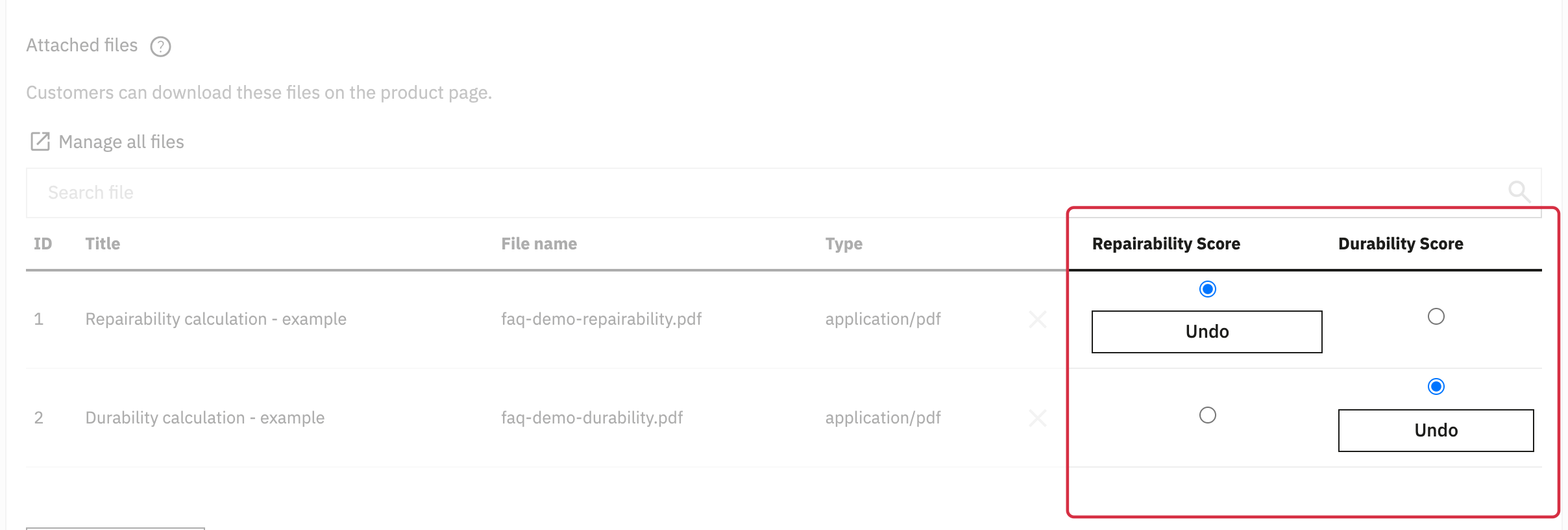
Screenshots taken in PrestaShop 9 with demo data. Labels and layout may vary with your version.
You can also add a file directly from the product editor when your interface provides this action. Use Catalog > Files to find and complete its information, including title and description translations.
3. Decide whether to also show the file as a product attachment
The module’s document selection and the native product attachment are independent:
- selecting a document in the score column makes it accessible from that score;
- the native product attachment also lets it appear in the product page’s attachments, depending on your theme.
In the PrestaShop 9 interface shown, add the file to the Attached files list, then select it in the relevant score column. To offer both access methods, keep the file in this list and save the product.
To keep access only from the score, first select the document in the module’s column, then remove its row from the native list using the remove cross. Confirm the removal and save the product. This removes the native product attachment without deleting the file from the catalog or the link stored for the score.
The Undo button in a score column cancels the link between that score and its document.
In older interfaces with a native product association checkbox, check it to also offer the file in the product attachments, or leave it unchecked to keep access only from the score. Apply the same principle to the durability document, then save.
4. Check the download in your shop
Open the product page and click the relevant score to check that the expected document downloads. Repeat on listing pages if display of that score is enabled there. If you also attached the file to the product, check access from the product’s attachments.
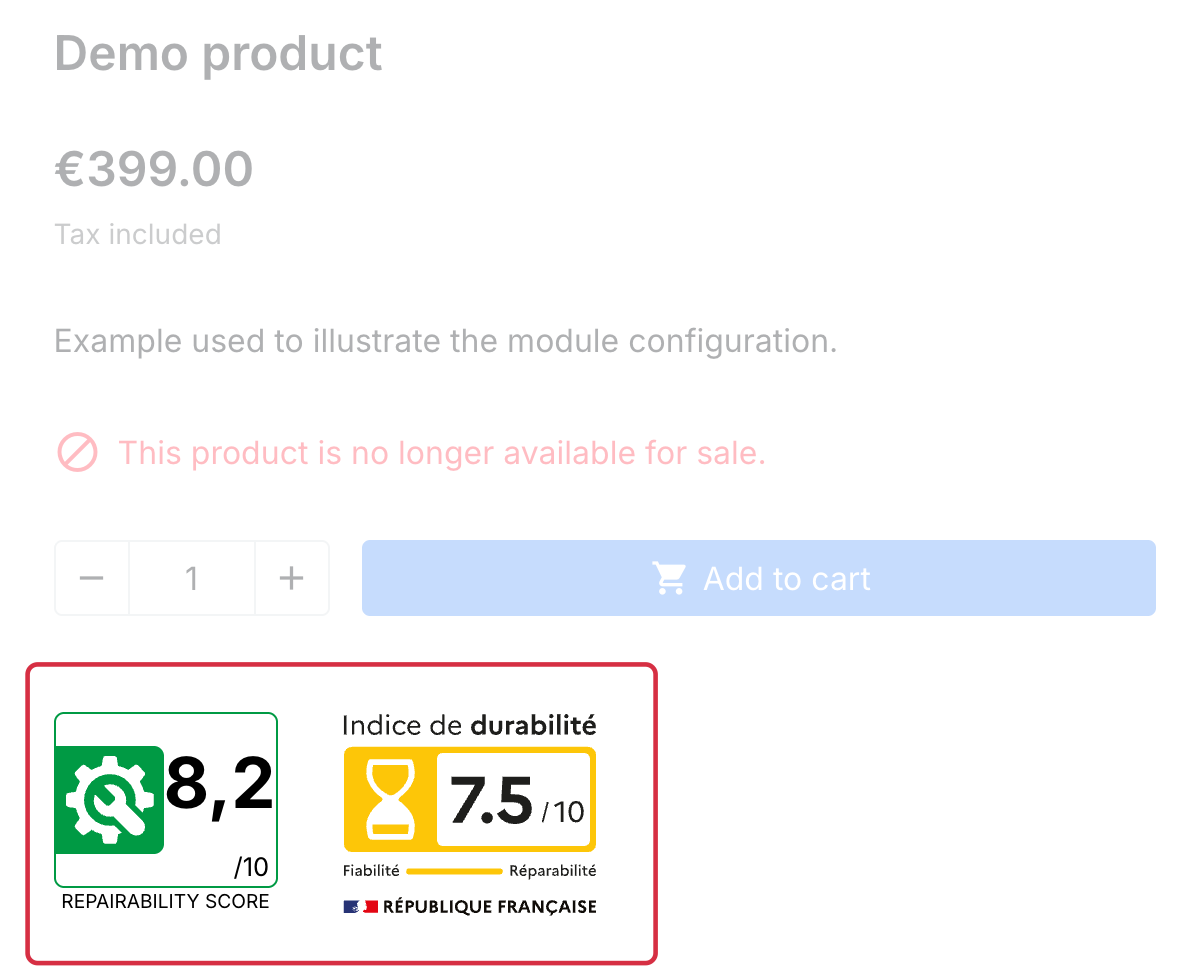
To enter ratings or enable listing-page display, see the FAQ on configuring the module.