Why don't my changes appear on my site?
When you make changes in your back office (products, categories, attributes, features, ...) it is important to re-index the search engine(s) created in your Advanced Search 5 module so that these changes are taken into account.
Re-indexing is a process during which your "Advanced Search 5" module updates all groups of criteria, as well as their values, to take into account the latest changes made in your catalog. For example, if you change the values of an attribute, you need to re-index your search engine so that your customers can filter their search results based on these new values.
"Advanced Search 5" offers you several ways of indexing search criteria.
Automatic indexing
Automatic indexing in real time
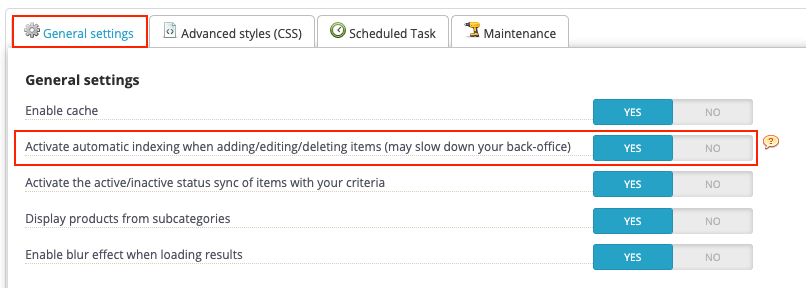
Under the search engines you have created, open the "Performance" tab and select YES for "Activate automatic indexing when adding/editing/deleting items (may slow down your back-office)". When you add, edit or delete a catalog item that affects an active criteria group, the module automatically updates the relevant index data.
Important: Only the search engines affected by the modification are updated.
Scheduled automatic indexing
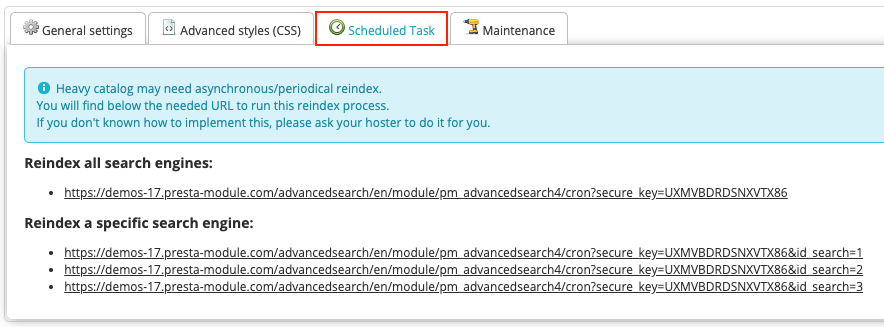
Still under the search engines you have created, in the "Scheduled Task" tab, you will find all the URLs to launch the automatic indexing of one or more of your search engines in a planned way. This type of automated task is called a CRON task.
To learn how to create a CRON task, we invite you to read this FAQ or ask for help directly from your hosting provider.
The first URL will allow you to automatically re-index all your search engines by scheduling a single CRON task.
The following URLs allow you to automatically re-index each of your search engines independently with different CRON tasks.
Manual indexing
Manual indexing of a search engine in particular
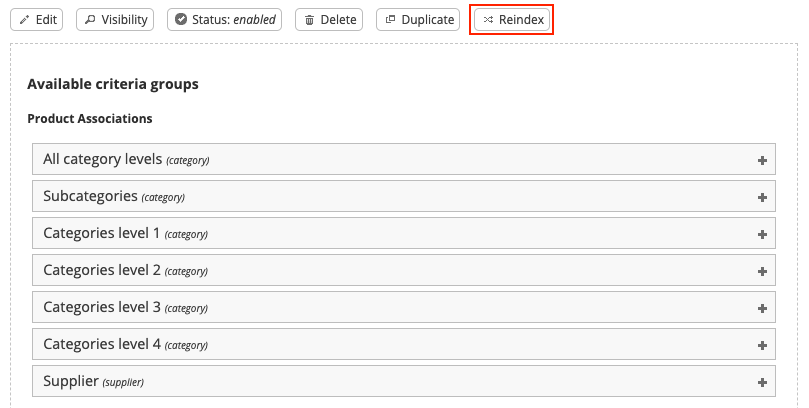
In each of your search engines, in the top menu you will find the button "Reindex": by clicking on it you can manually launch the indexing of the search engine concerned (and only of this one) :
This option can be useful in particular if your products are added other than through the back office of your PrestaShop (for example the import of a CSV file or the use of ERP tools...). If these tools do not trigger the updates used by the module, run a manual re-indexing after the import or schedule a CRON task. For a large import that triggers repeated automatic indexing, you can temporarily deactivate "Activate automatic indexing when adding/editing/deleting items (may slow down your back-office)" in the "Performance" tab, re-index after the import is complete, then reactivate the option if you normally use it.
Manual indexing of all search engines at the same time
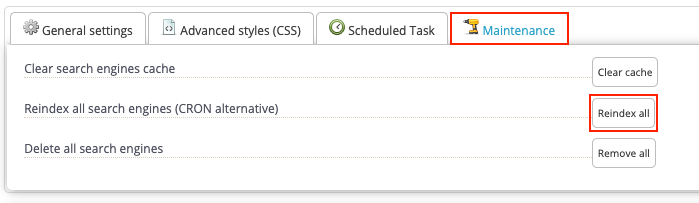
You can also manually launch the indexing of all your search engines at the same time. To do this, go under your search engines, in the "Maintenance" tab and click on the "Reindex all" button:
Extra Properties with PrestaShop 9.2 (PRO version)
From Advanced Search PRO 5.4.0, indexing also covers supported PrestaShop 9.2 Extra Properties used in your active criteria groups. These properties can belong to products, combinations, categories, brands or suppliers.
When automatic indexing is enabled, changes saved through the supported PrestaShop back-office forms update the affected groups. If you change Extra Property values through an import, an ERP or direct database updates that do not trigger the module's updates, re-index the affected search engines manually or use a scheduled task after those changes.
If you change a property's definition or its availability for the shop, check that it is still eligible for front-office use and re-index the affected engine. Re-indexing cannot restore a deleted property or its source values: those must exist in PrestaShop.