How do I add and configure criteria groups?
Add and order groups
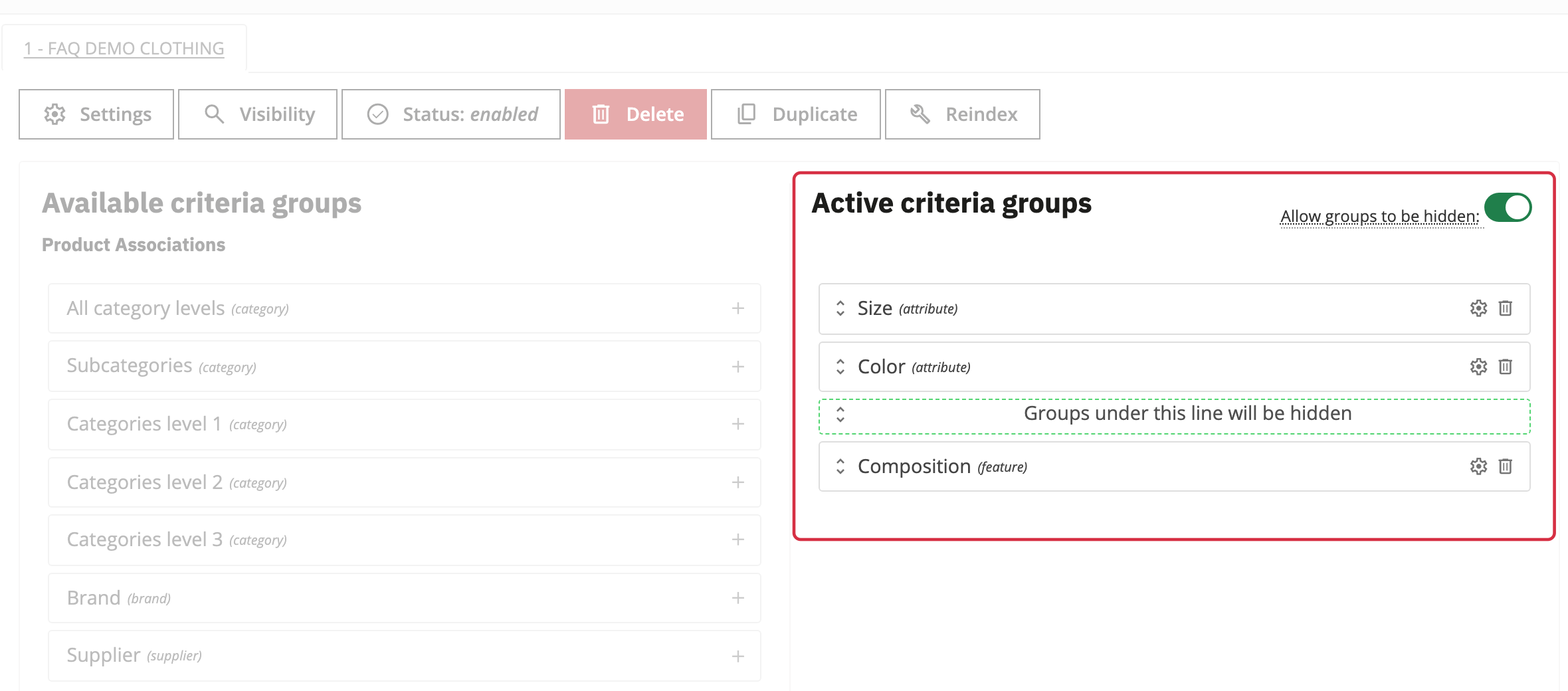
Open the relevant search engine. In “Available criteria groups”, click a group to add it to “Active criteria groups”. Move active groups to change their display order. If you enable hidden groups, groups placed below the separator are offered to customers only after they open the additional options.
Choose presentation and selection options
Open a group’s settings to define its public name in each language and its display method. Available settings depend on the data type: a color attribute, a price and a category do not offer exactly the same controls. The “Icon” field illustrates the group title; it is separate from the presentation of its values. In PRO, to display values as images, choose the “Images” method, then add each criterion’s images in the list. This value display method is not available in the standard edition.
For a category level, you can display only the subcategories of the category selected at the previous level. For example, after choosing a product family, the next level can offer only its subfamilies. Linking category levels this way does not turn the standard engine into step-by-step search.
Where the group type and display method support it, enable multiple choice. OR retains products matching at least one selected value in that group; AND requires matching the selected values. The available controls depend on the group type and display method.
For supported numeric values, “Display as range” lets you enter comma-separated boundaries, for example 0,50,100,150, and a unit. A slider or numerical interval’s step controls the gap between selectable values; it does not define the range boundaries. Choose a step that matches the values in your catalog.
The “All” label and value-filtering input depend in particular on the dropdown mode and multiple-choice setting. Use the options actually offered for the group rather than trying to reproduce another type’s controls.
Manage long lists and sorting
The maximum criterion count and out-of-bounds display method are set in two places: the engine chooses the behavior (hover, click or an overflow block), while the group sets the limit or height. A maximum count of 0 means unlimited. A long list is different from an empty group or one that has no effect on the results.
The engine also offers options to hide empty or implicit groups, display criteria without results and add a product count beside each criterion. Choose what you want customers to see; an indexed criterion may be hidden in the current context.
For value sorting, use the offered modes: custom position, alphabetical, numeric, product count and, for some types, catalog position. Then choose ascending or descending order. With custom position, move the values into the required order.
Check the data
After source data changes, re-index the relevant engine to update the values used by its filters.
Native properties such as weight, dimensions or stock are separate from PrestaShop 9.2 Extra Properties. The latter require the PRO version: see their dedicated guide.
See also: group values under a custom criterion.