How to join the full energy label and the product information sheet to my product page?
In addition to displaying the energy label in arrow form, containing the appliance's energy class, you must also make the complete energy label easily accessible, containing the scale used, the energy class and several pictograms characteristic of the appliance. The information sheet containing the additional official technical information declared by the supplier in the European EPREL database must also be available for download.
For each product, attach both documents: the badge opens the selected complete label, and the information sheet is available in the attachments section.
First of all, go to the "Files" tab of your PrestaShop back-office menu, in the "Catalog" section:
Click on "Add new file" and upload the complete label of your first product. Do the same for all products.
Proceed in the same way for information sheets. Then open the relevant product form.
In the new product form, open “Details”, then “Attached files”. In the legacy product form, attached files are under “Options”. Search for the complete energy label and product information sheet files, and attach both to the product.
On the row containing the complete label file, select the radio button in the “Energy label” column. The badge on the product page will open this file. Only one document can be linked to each product’s badge. Select another row to change the document, or click “Undo” to remove the link.
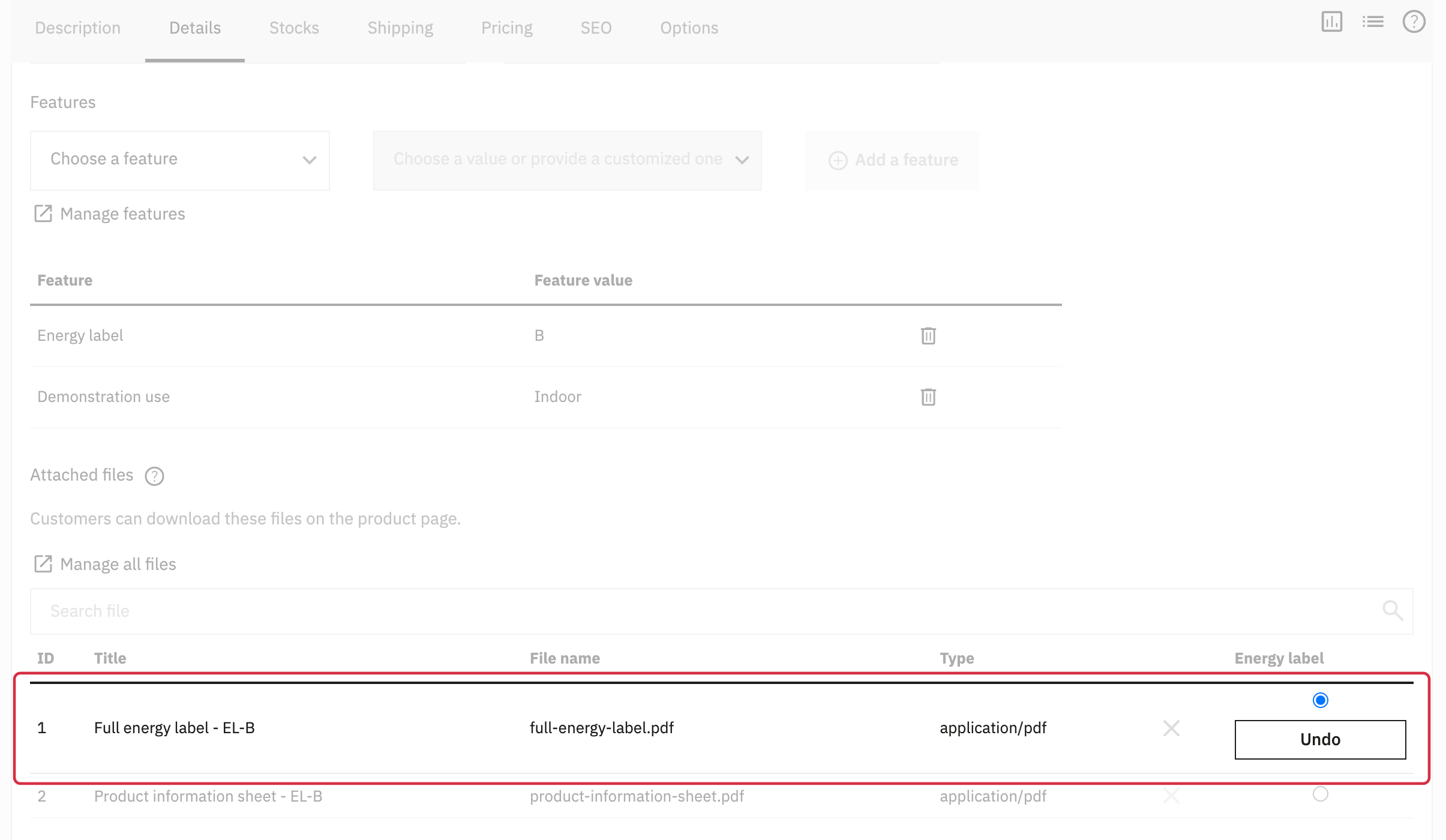
The badge appears only if the product has an A to G class in the feature used by the module: see the module configuration.
The badge links to the selected file and opens it in a new tab. Depending on the file type and browser, the document may be displayed or downloaded. It also remains available in the attached files on the product page.
The product information sheet remains available in the attached files without being selected as the badge destination. The example below shows both documents on a store product page; their position depends on the theme:
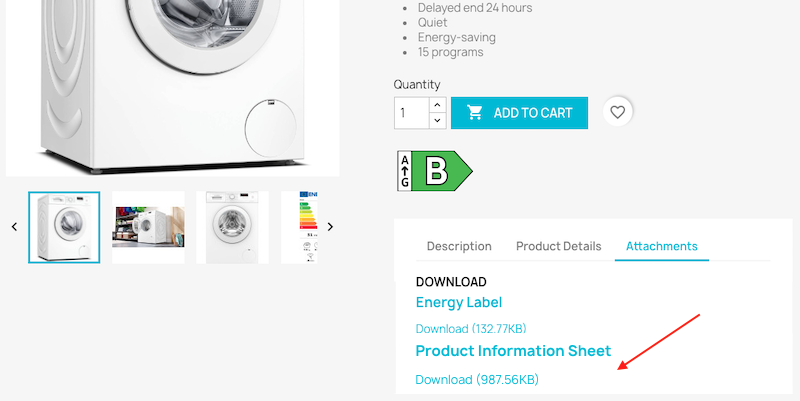
Without a linked file, the badge can still appear for an A to G class, but it contains no link to a complete label.
Also check the placement and access to the complete label and product information sheet on the relevant sales pages, according to the rules for your product category. The European Commission’s guidance for dealers explains the display requirements. Having files in the attachments section alone does not guarantee that your presentation meets these rules.