How to configure my module?
The module displays the energy class assigned to your products on their product page and, when enabled, in product lists. The categories covered and application dates depend on the products you sell: see Which products are covered by energy labelling?.
Use the complete label and product information sheet supplied for each model, with the information declared in the European EPREL database. To attach them to your products, follow the procedure for providing the complete label and product information sheet.
Here's how to configure your "Energy Label" module:
On installation, the module automatically creates an "Energy Label" feature group and the possible feature values between A and G (as well as a N/A value if the class has not yet been defined). But you also have the option of using an existing feature group, if you have already filled in the energy classes of your products in your store for example, by selecting it directly in the module configuration:
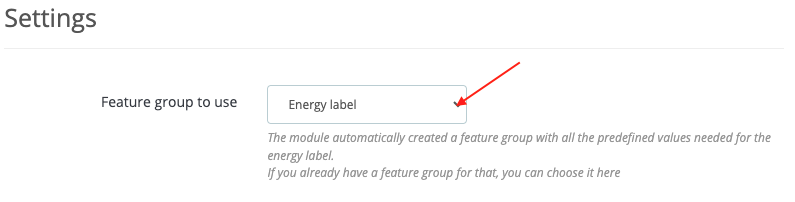
Use the exact uppercase values A, B, C, D, E, F or G in the selected feature. N/A, a feature with no assigned value or any other value displays no badge. The module displays the class assigned to the product; it does not calculate it.
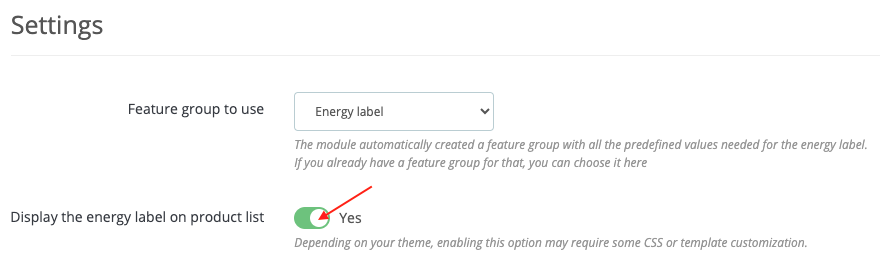
“Display the energy label on product list” is disabled by default. Enable it to show badges in product lists. Depending on your theme, CSS or template adjustments may be needed:
Save.
Then go to the "Files" tab in your PrestaShop back-office menu ("Catalog" section). Load the complete energy labels and product information sheets (EPREL database) supplied by your supplier.
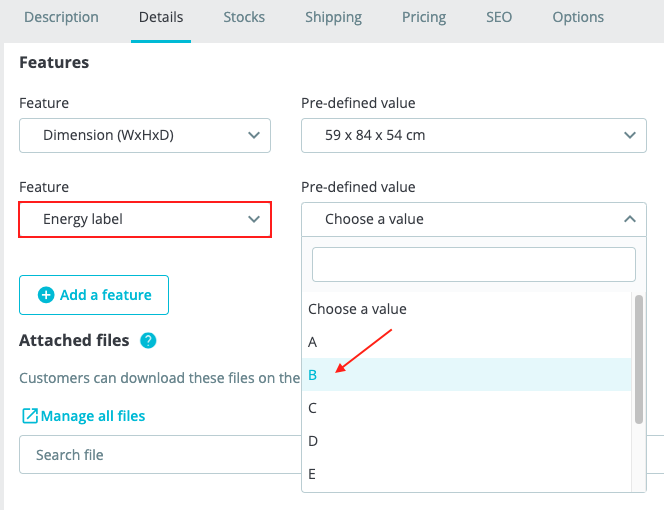
On each relevant product page, assign the appliance’s energy class to the feature selected in the module configuration. If you kept the feature created during installation, this is “Energy Label”:
In the product’s attached files, add the complete energy label and the product information sheet. In the “Energy label” column, select only the radio button for the complete label: this is the document that opens when a customer clicks the badge. The information sheet remains available in the attachments section. See the detailed procedure for adding the files and choosing the document linked to the badge.
Save.
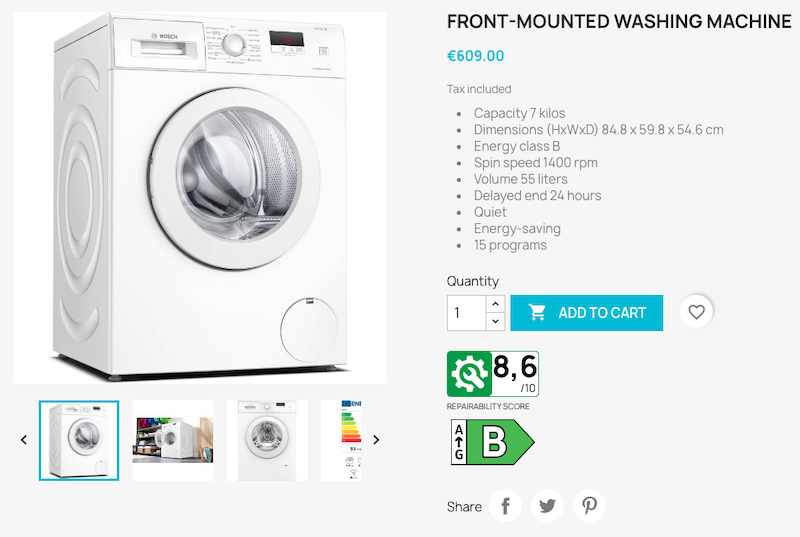
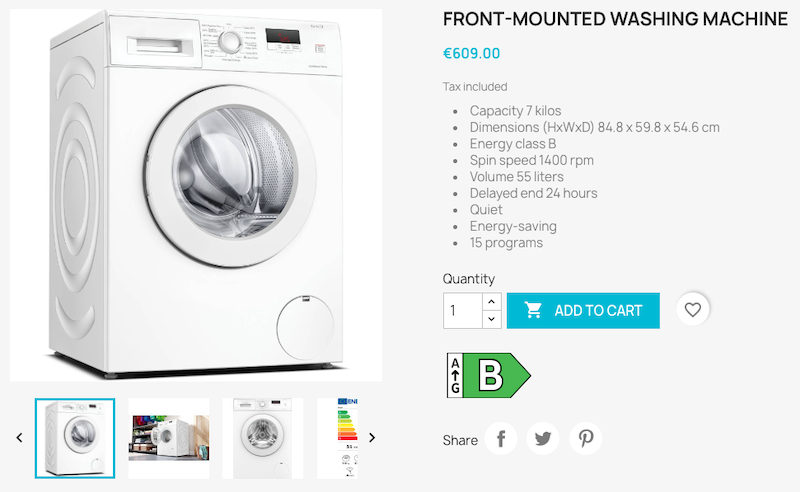
In your store, check that the badge appears on the product page. In the example below, it is displayed under the add-to-cart button; its position depends on your theme:
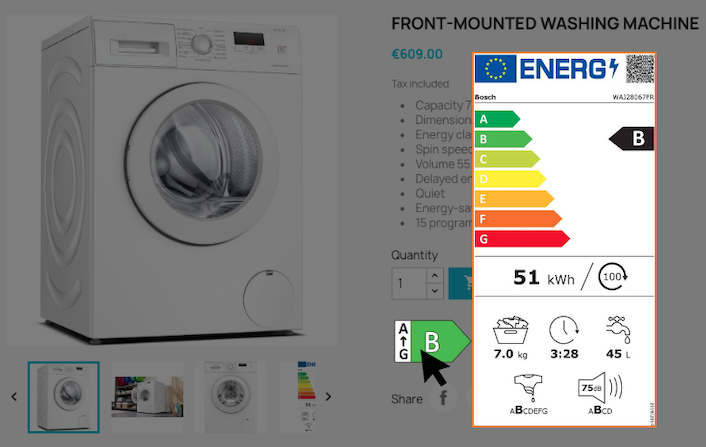
By clicking on the energy label you can download the complete energy label:
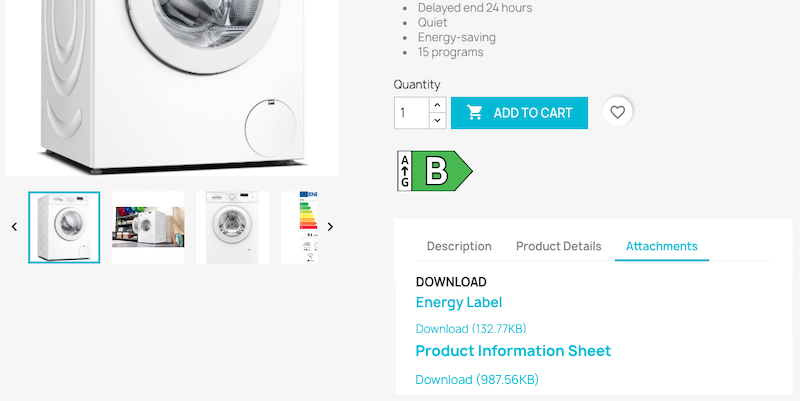
As for the product information sheet, it can be downloaded from the attachements section:
If you want to display the energy label elsewhere, you can ask your developer to use PrestaShop's widget mode (see developer documentation).
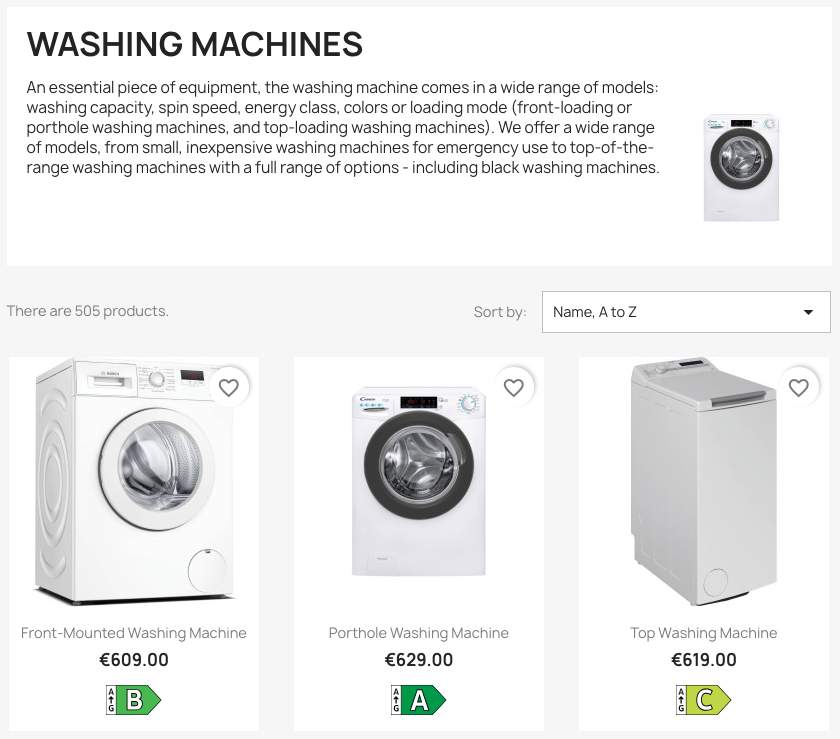
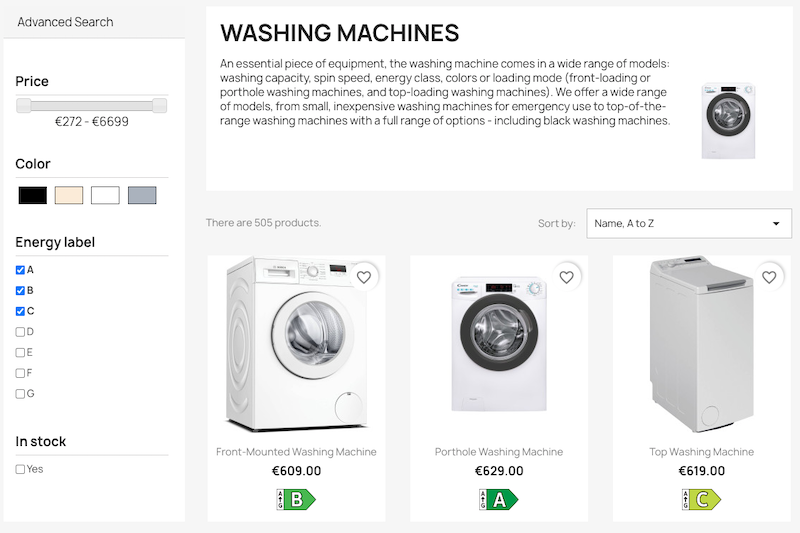
If you have enabled the corresponding option in the module, the energy label will also be displayed on product list pages. Example here on a category page:
You can add an "Energy class" or "Energy label" criterion to your filter module to enable your customers to filter your products according to their energy consumption.
For full compatibility with "Energy Label", we recommend our "Advanced Search 5" module. If you also want to improve your SEO ranking, for example on queries that include certain energy classes, find out the Pro version of Advanced Search 5:
Depending on your products and when they were placed on the market, other information may be required alongside the energy label. In France, the durability index replaced the repairability index for the televisions concerned from 8 January 2025 and for the washing machines concerned from 8 April 2025. Check the ministry’s information on the durability index for the rules that apply to your products.
The energy label, repairability index and durability index provide different information. Use the data appropriate to your product category.