How do I create a pack and set its price?
Build the pack
To create a pack, open “Catalog > Packs” and select “Add a new pack”. Enter its name in your store’s languages and open “Pack configuration”.
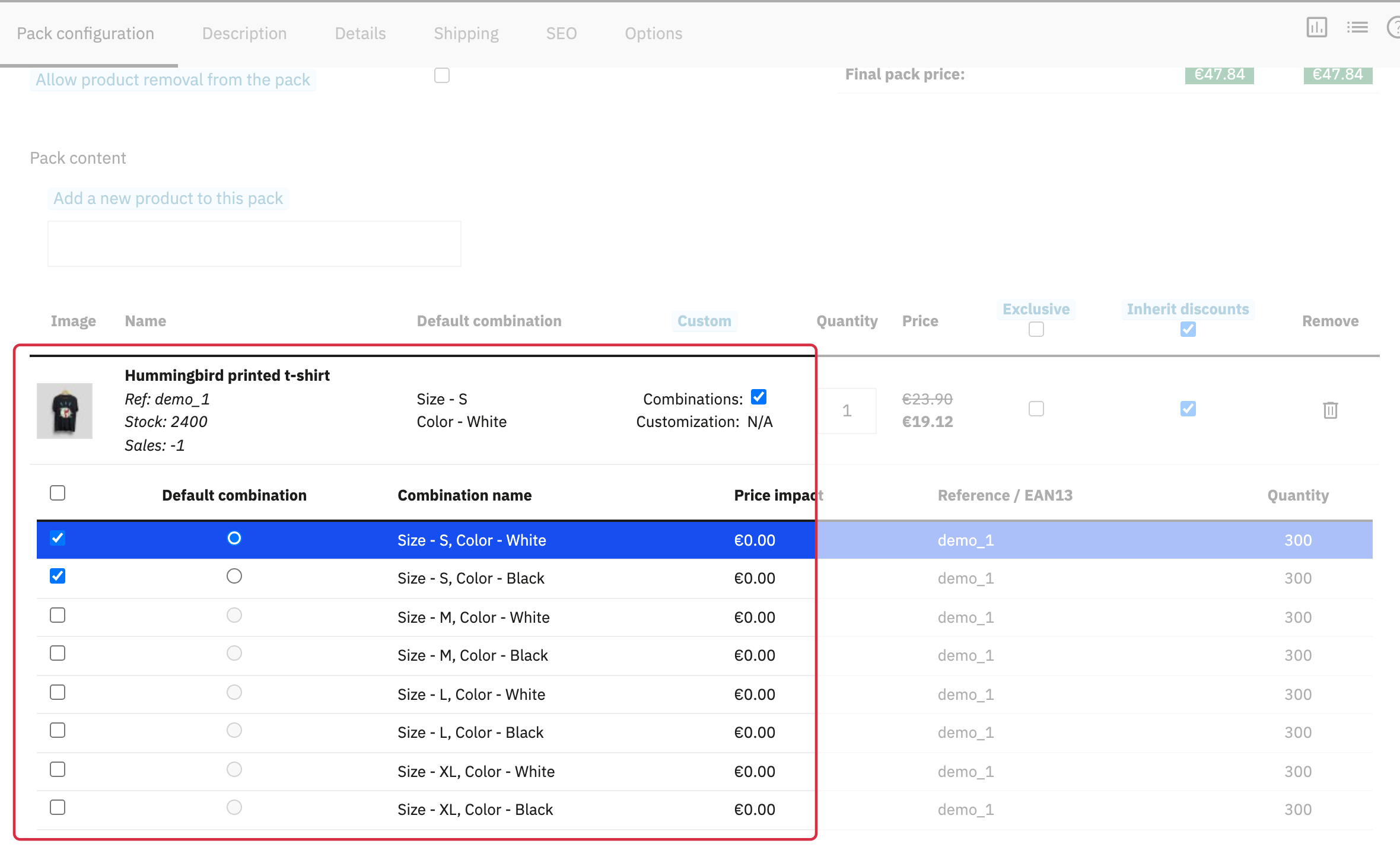
In “Pack content”, search for each product by name or reference and select it. Set the required quantity of each product. If a product has combinations, check “Combinations” in the “Custom” column to choose which ones will be offered in this pack. In the expanded table, checkboxes select the allowed combinations; the round button selects the default combination, which must be one of the allowed combinations. This can differ from the default used when the product is sold individually.
Choose the price
Choose one price rule: no pack-specific discount; a global percentage discount on each product; a custom discount per product, as an amount or percentage; or a specific price for the pack. A specific pack price disables product discounts.
For the other modes, “Inherit discounts” determines whether discounts already applied to a product are retained: uncheck it to start from the product’s base price. A custom combination discount replaces the discount defined for that product in the pack. If you choose a specific pack price, enter the price for each customer group shown. Follow the tax-included or tax-excluded indication beside the fields.
“Exclusive” prevents the product from being purchased outside a pack. Leave it unchecked to keep selling the product individually. Check the price simulation, then save the pack.
Let customers change the contents
To allow customers to remove a product, the pack must contain at least two products, use “Do not apply any discount for this pack”, and have “Inherit discounts” checked for every product. Then enable “Allow product removal from the pack”. To also let customers choose each product’s quantity, enable the corresponding setting in the module’s general configuration; this requires product removal to be allowed on the pack.
If the customer keeps the original composition and quantities, the cart contains the pack. If a product is removed or a component quantity is changed, the module adds the remaining products separately to the cart with the selected quantities.
See stock management, order details and multistore conditions for these topics.
See also: Configure pack displays.
See also: Create a bundle of several units of the same product.
Other FAQs in this category
- How to avoid a long loading time when updating a pack or a product contained in one or more packs?
- How do I create a bundle containing several units of the same product?
- How do I configure pack pages and related pack displays?
- Can a pack be associated with multiple stores? (multi-store mode)
- How to migrate my Advanced Pack data to a new PrestaShop installation?