How do I create a bundle containing several units of the same product?
Create the bundle from the product
A bundle groups several units of the same product into an offer accessible from its product page. To create one, open the product page, find “Bundles” and click “Add bundle”. Save the product first if it has just been created. The form is not offered for customizable products or on a pack product page.
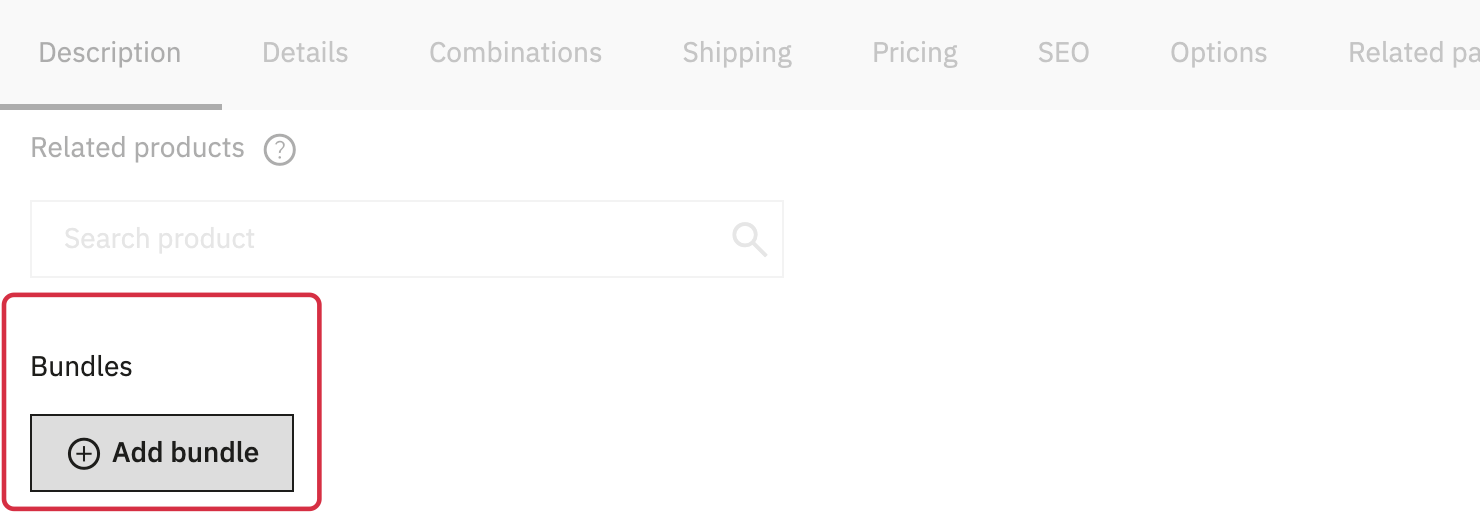
Set up the offer
Enter the number of units and the packaging name, such as “bottles”. You can add a bundle name and badge. If the product has combinations, select the combination used by the bundle, then choose its image.
In price settings, enter either the bundle’s tax-excluded price or a discount as an amount or percentage. Click “Apply” to save the bundle, then save any other changes to the product page.
Check the display
In the module’s general configuration, “Bundles settings” controls the thumbnail format and default bundle category. If no specific category is selected, the module uses the original product’s default category. The bundle is hidden from catalog listings; its offer is shown on the original product page.
Then check that the bundle offer is shown on the storefront product page and that customers can access its purchase. To edit a bundle, return to its original product page. For the stock shared by products and packs, see the stock FAQ.
See also: Create a pack of different products.
Other FAQs in this category
- How to avoid a long loading time when updating a pack or a product contained in one or more packs?
- How do I configure pack pages and related pack displays?
- How do I create a pack and set its price?
- Can a pack be associated with multiple stores? (multi-store mode)
- How to migrate my Advanced Pack data to a new PrestaShop installation?