How can I display a shop resource inside text?
In the text field you want to enrich, place the cursor, click “Insert a Shortcode”, then open “Shop resource” and choose Product, Category, Brand, Supplier or Pages (CMS). Start typing the resource’s name, then select it from the results.
Choose the “Output type”. “Name” displays the resource’s name (the page title for a CMS page), “Link” displays its URL as plain text and “Image” displays its image. The “Image” option is available for products, categories, brands and suppliers; it is not available for CMS pages. To make a name or image clickable, enable “Surround with link”: it wraps the content in a link to the resource without adding a highlighting effect.
For an image, select one of the image formats defined in your shop. For a product, you can select a combination; with the “Name” output type, “Display price” adds the price to the displayed name.
“Language” determines the language used to retrieve the resource’s data. “Use context” follows the visitor’s language; selecting a language forces that language for the displayed data. This setting does not restrict the shortcode to visitors using that language.
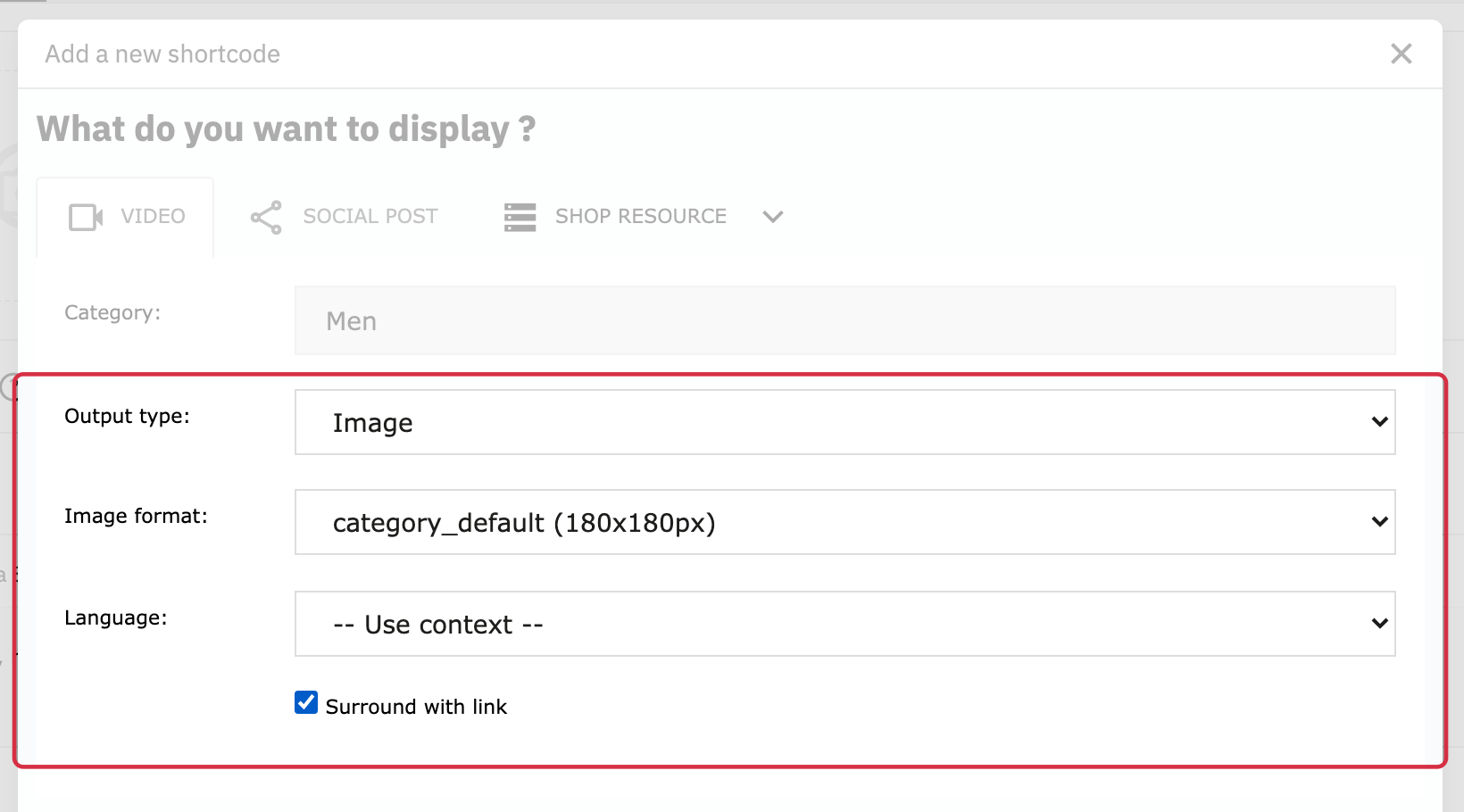
For example, to insert a category image into a brand description, open the brand’s description, select “Shop resource” then “Category”, find the category, and choose “Image”, its format and the language. Click “Submit”, save the brand and check its display in your shop.
See also: Where and how can I insert a shortcode?.